What to explore
日本語で読むThings worth trying — roughly in the order that matters most for testing.
Read something
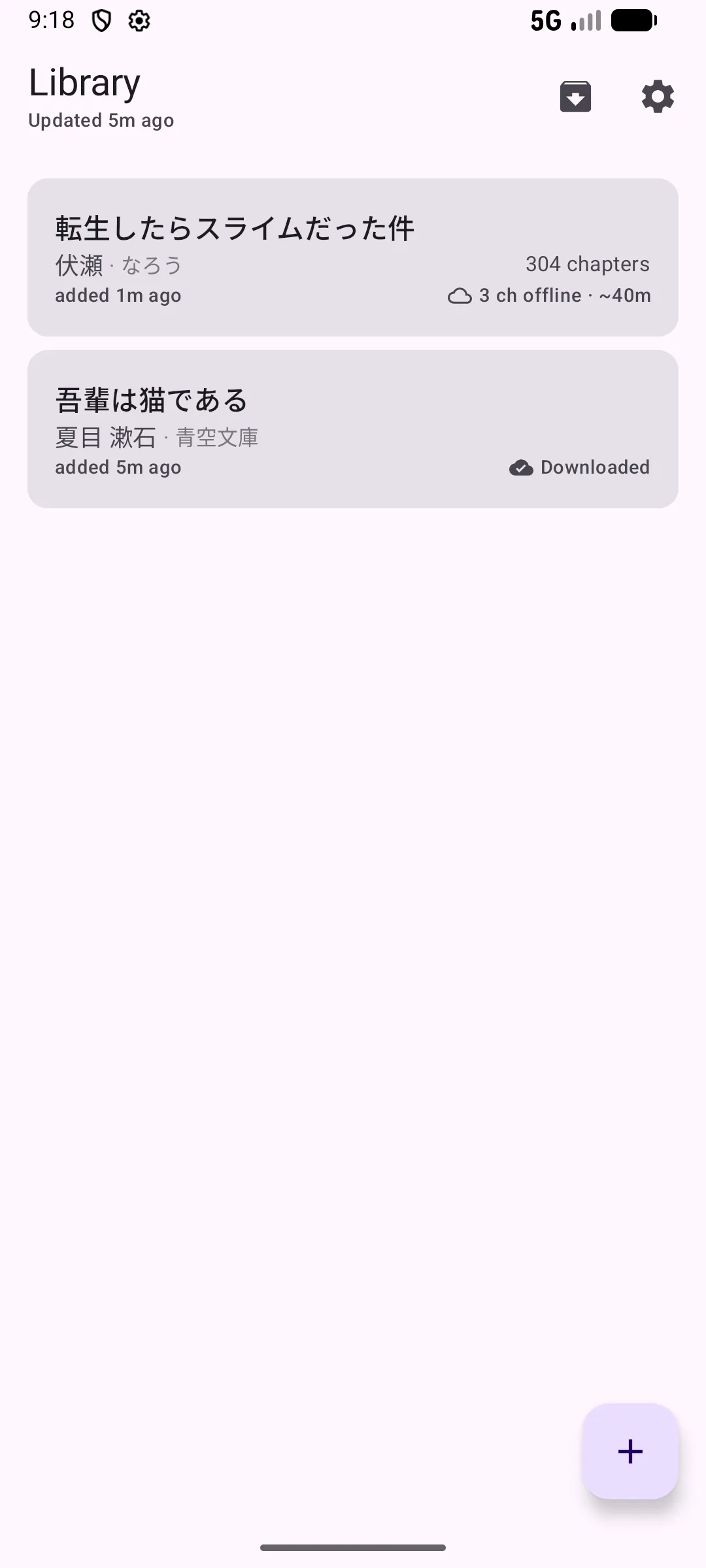
The most useful thing you can do is read works you'd normally read and see if anything feels off.
Adding works
- + button (bottom right) → pick a source to open the in-app browser
- Share a URL from any browser or app
- Local files — plain text and ZIP
Supported sources
What to look for
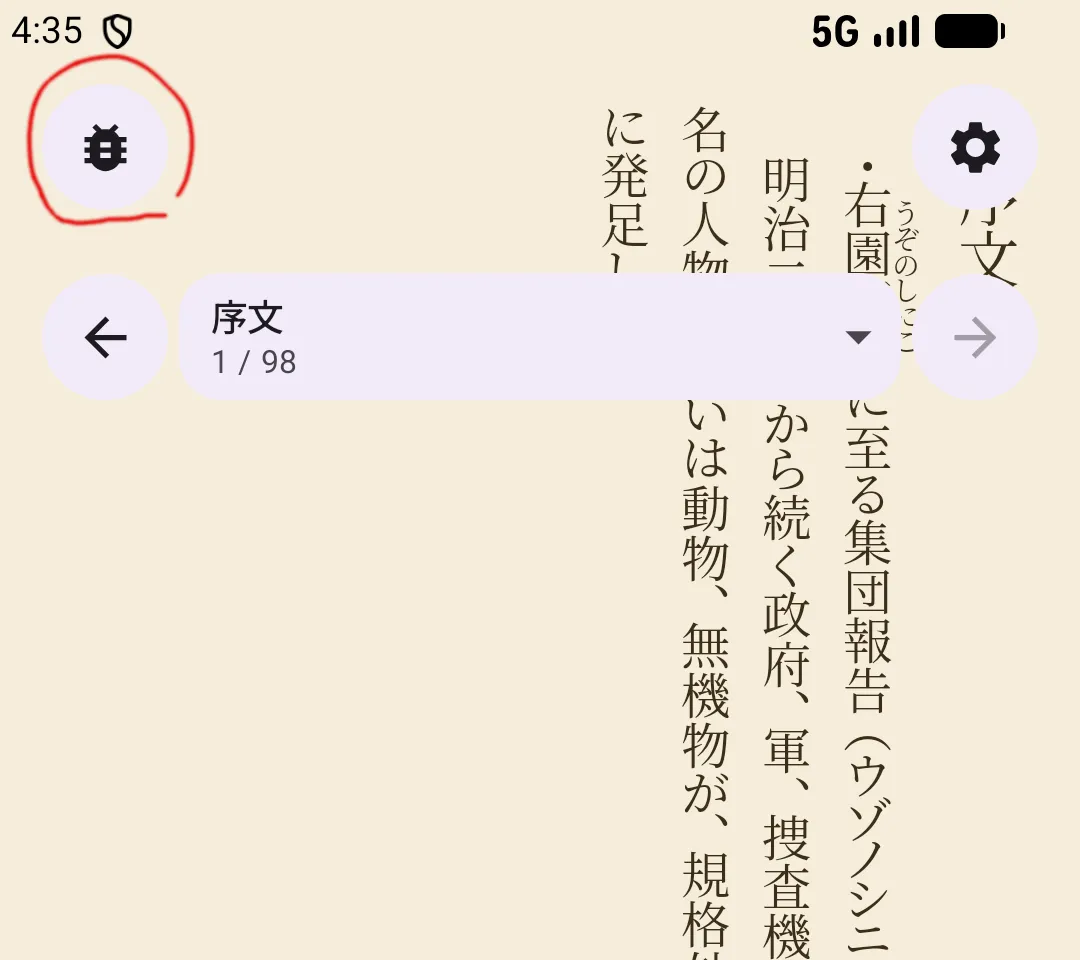
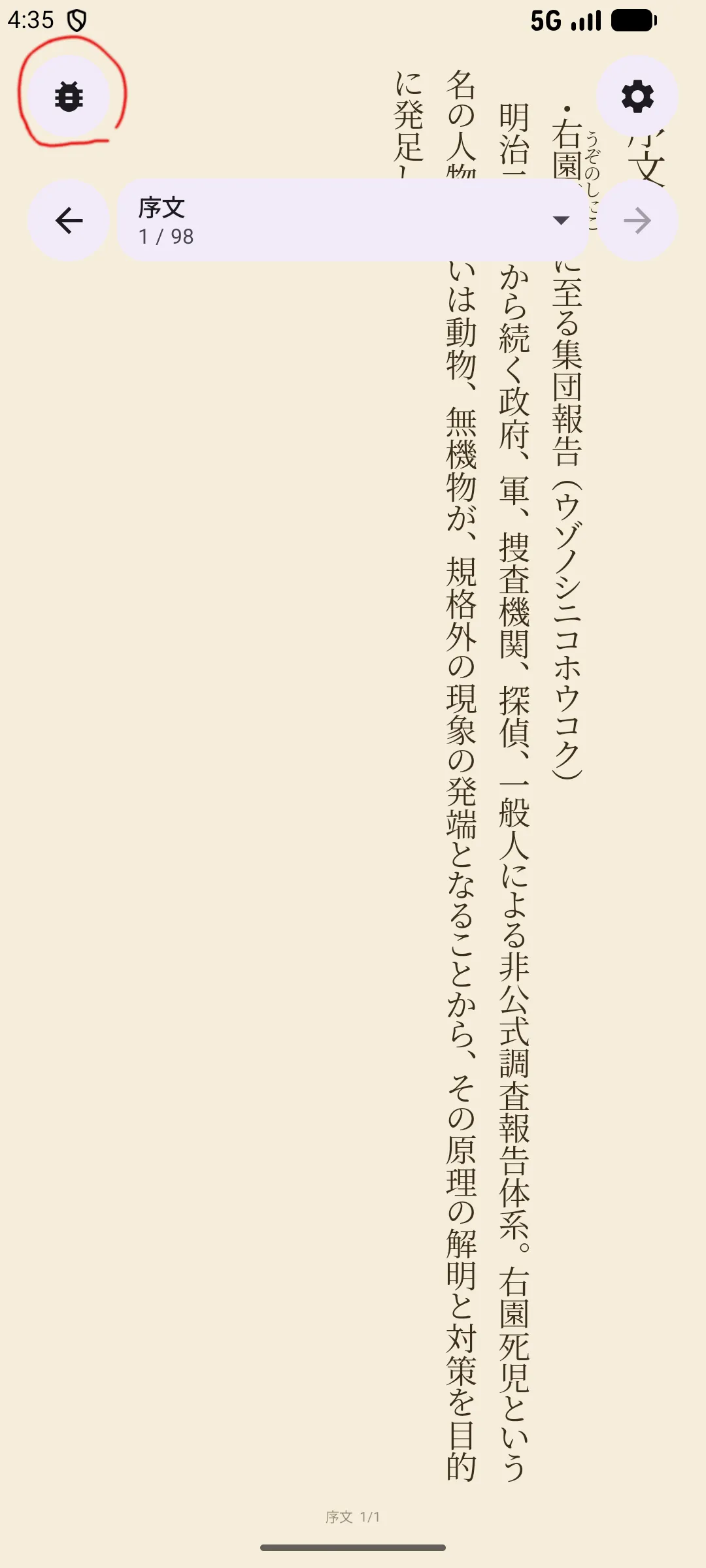
- Text that renders wrong — broken ruby, garbled characters, weird spacing
- Navigation issues — chapters out of order, missing content, TOC problems
- Works that fail to add or download
- Anything that interrupts reading flow
If something looks off, use the bug icon in the reader overlay (top left) to report it with the problematic text selected — that gives the most context for reproducing the issue.
Sync across devices
If you have multiple devices (Android, iOS, or both), try Makura Sync. $1/month, but the 30-day free trial starts automatically.
Setup
- Tap the sync icon at the top of the library screen
- Sign in with your Google account (Apple works as well)
- The trial starts — no payment needed
What to try
- Read on one device, switch to another — does your position carry over?
- Add a work on one device — does it appear on the other?
- Bookmark something manually (long-press a bookmark) — does it sync with the device name?
When it syncs
The app syncs when you open it and when you leave it (switch to another app or lock the screen). There's no manual sync button — it happens automatically on activation and deactivation.
What syncs
- Reading position, library, bookmarks
- Up to 10 linked Google and Apple accounts (any combination)
- Subscribe on one account — all linked devices get access
- Ads are removed while subscribed
If something goes wrong
The sync details screen (tap the sync icon) shows diagnostic information — last sync time, account status, error details. There's a copy button that puts all the diagnostics into your clipboard — paste it into the in-app bug report or email to android-beta-feedback@kotonoha.ws. Do not post diagnostics to the group — they contain account identifiers.
Download rules
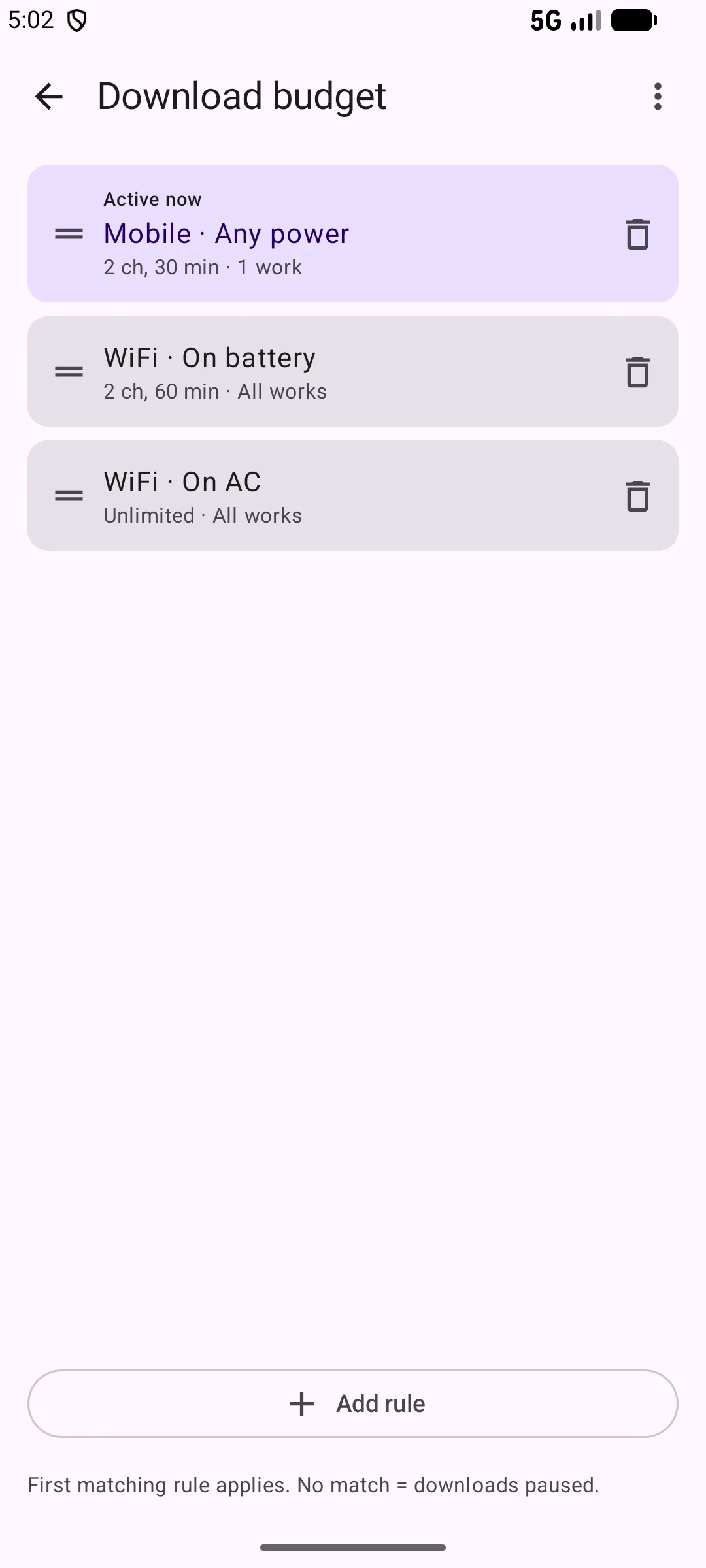
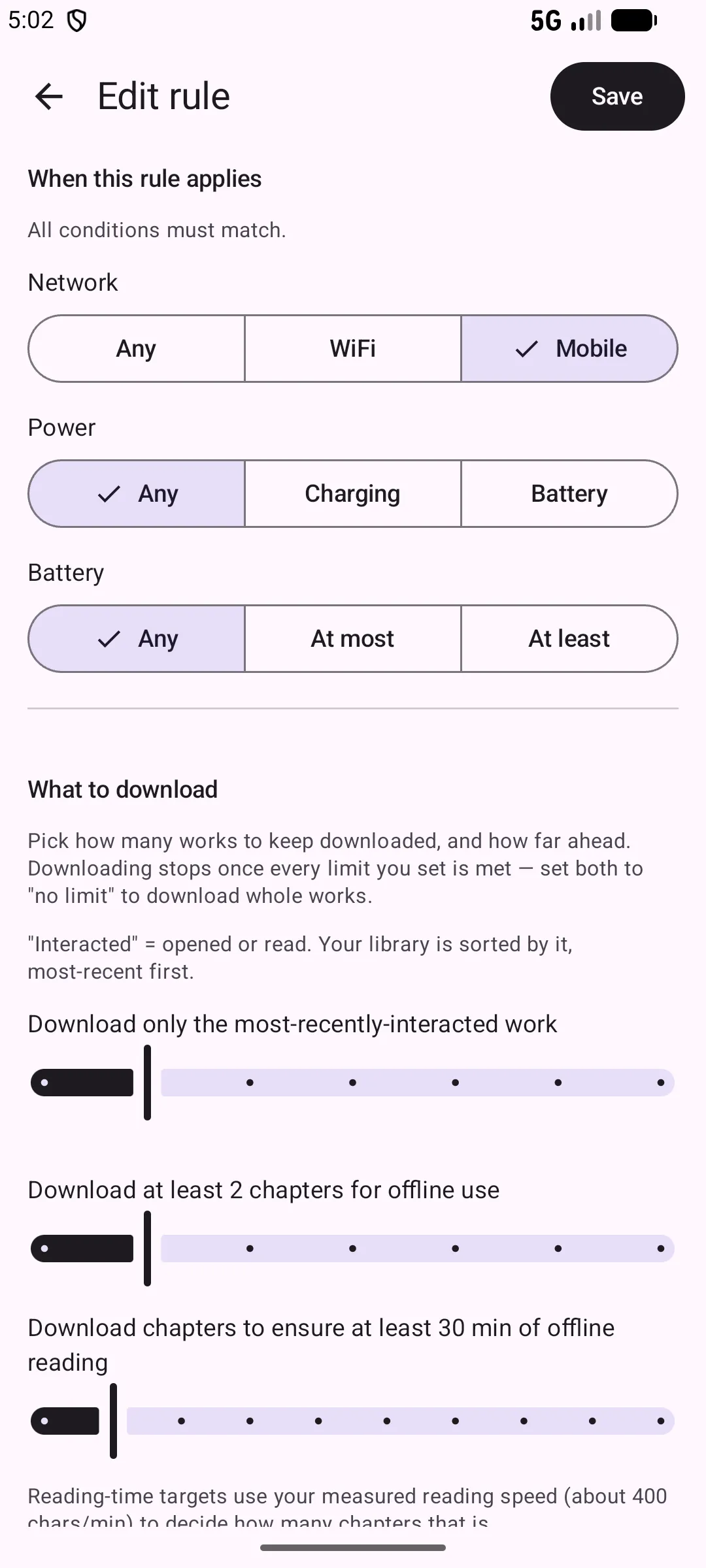
Settings → Download budget. The app downloads chapters ahead of your reading, but you control exactly how.
How it works
Rules are checked top to bottom — first match wins. No match = downloads pause. Each rule has conditions (network, power, battery) and targets (how many works, how far ahead).
What to try
- Switch between WiFi and mobile data — do the download limits change?
- Edit a rule or add a new one — does the behavior match?
- Long-press a work in the library → force download — does it download immediately regardless of rules?
- Read for a while, then check: did it prefetch ahead based on your reading speed?
Defaults
- Mobile — current work only, 2 chapters / 30 min ahead
- WiFi + battery — all works, 2 chapters / 60 min ahead
- WiFi + charging — all works, no limit
Settings
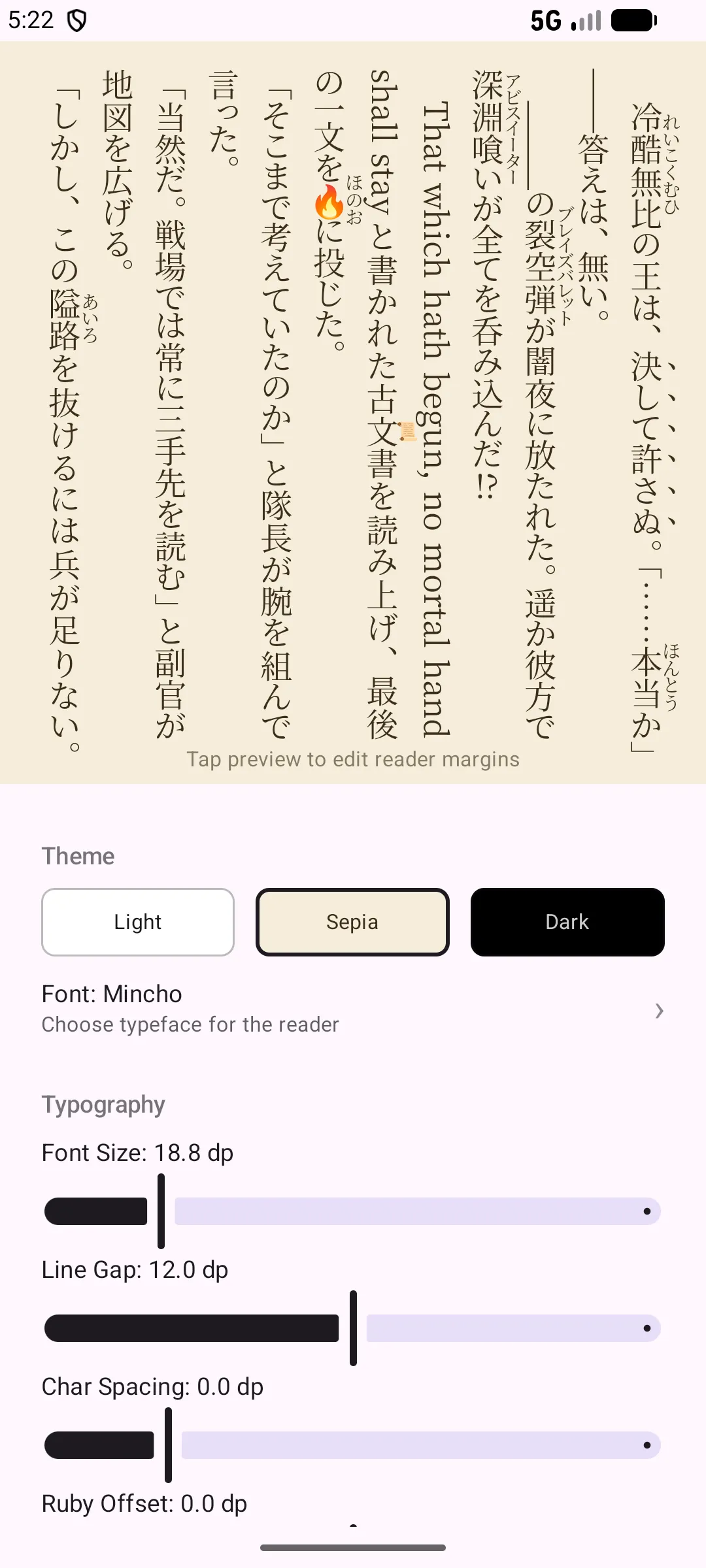
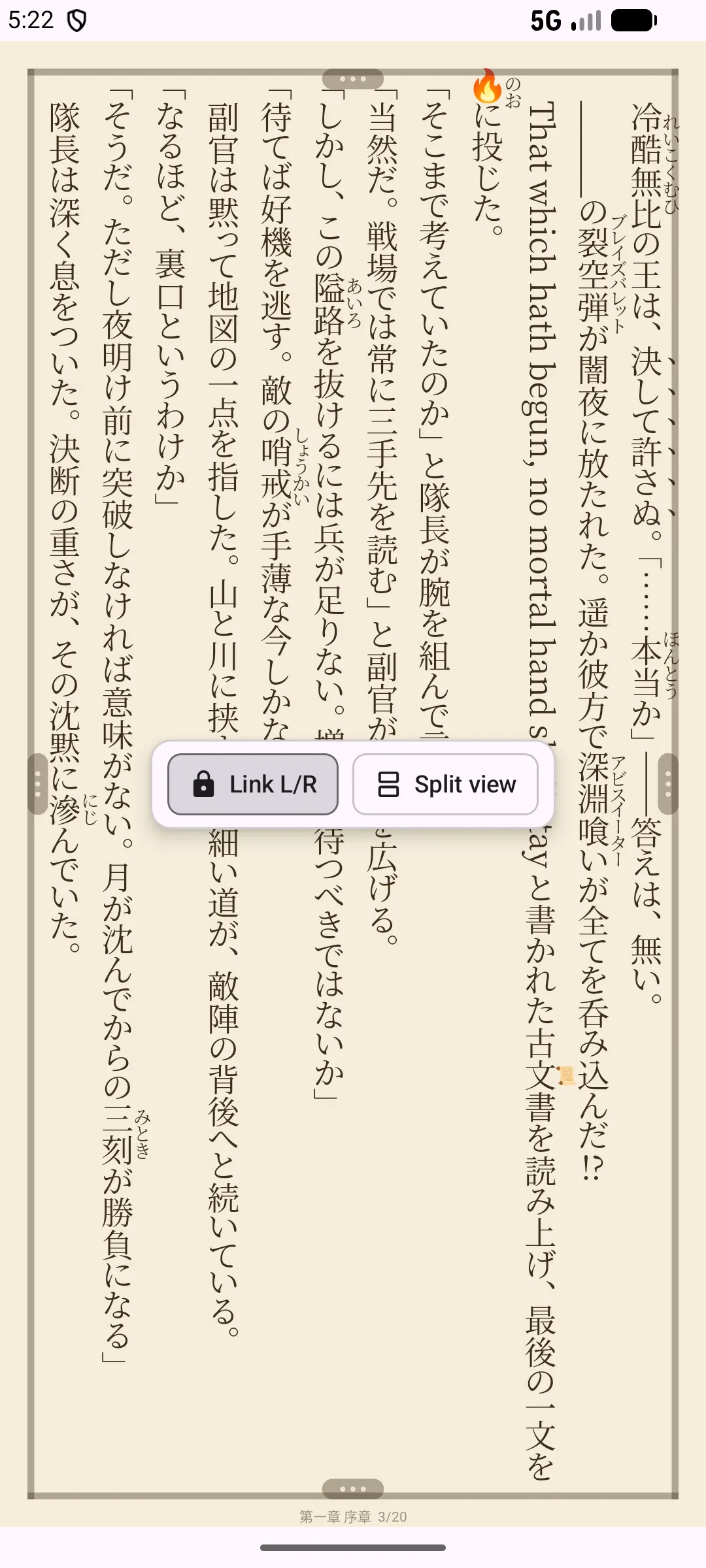
Menu → ⚙️ in the reader. Typography is deeply customizable — every setting has a live preview with instant reflow.
Display
- Fonts — several typefaces, some download on first selection
- Font size, line gap, character spacing, ruby size/offset — all continuous sliders
- Punctuation spacing — printed Japanese books add a full cell of space around punctuation. This slider goes from fully closed up (0) to the classical full-cell spacing (1), continuously.
- Theme — light, sepia, dark
- Split view — two-column layout, useful on tablets in portrait
- Margins — tap the book preview in the settings screen to open the margin editor. Per-orientation, each side adjustable independently.
Navigation
- Tap mode — "Left = next", "Right = next", or "Any = next" (good for one-handed reading)
- Swipe direction — your choice
Content normalization
Settings → Reading settings → Text Processing. Web novel text is inconsistent — these settings adapt it for vertical reading. All changes preview in real time.
- Blank lines — tidy (close up strays), bounded (cap successive ones), or as written
- Horizontal numbers (TCY) — how short numbers like "12" display inside vertical text. Four aggressiveness levels.
- Compact numbers — 50000 → 5万
- Sideways text — Latin words and long numbers rotated 90°
- Fullwidth conversion — ASCII ↔ fullwidth normalization